Private Information Tab


The Private Information page shows your (editable) personal information about the record. This information is restricted to the person who owns the record. It applies specifically to the user logged in and is not available to any other users.
This tab becomes available/editable only if the record is bookmarked.*
To complete the Private Information page
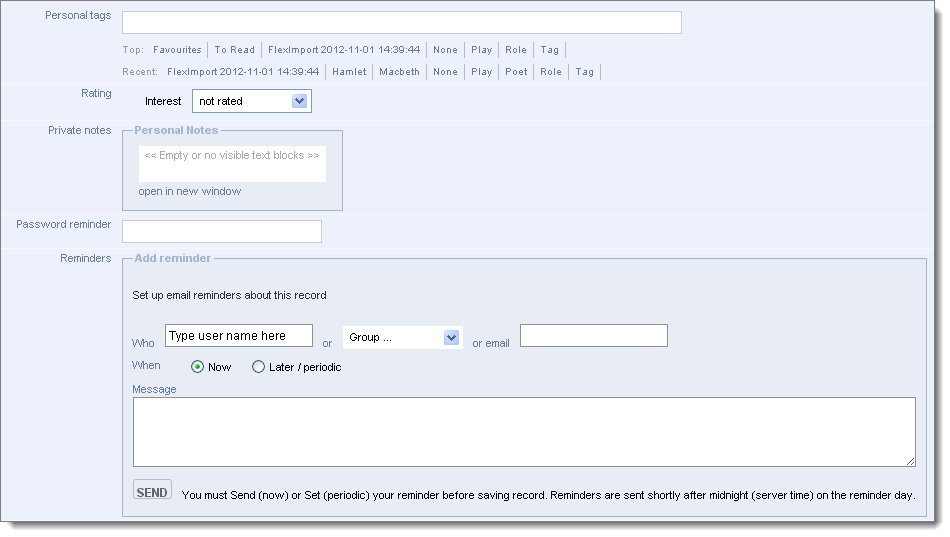
This has the following sections
Personal Tags |
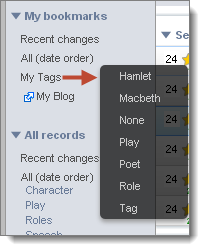
The Personal Tags section allows you to add your personal tags to the record. (See Tag Records.) Tags are very useful as a means of organising records. Note. Workgroup tags (available to all members) are added via the Workgroup Tags tab. Tags allow you to mark specific subsets of your bookmarked records based on your particular view of the world and using terminology familiar and meaningful to you individually, in order to identify records that you wish to use in different situations (i.e. a 'reference' collection of records). For example, to identify the records for a class reading list, for a research project, for a paper in preparation or for extra-curricular activities such as travel or events. Once you've created a few tags, Heurist will find them if you start typing them and will show the most-used and recently-used tags for selection. (See To add a personal tag below.) You can search for tagged records from the My Tags | My Bookmarks section of the Navigation pane (see Quick Search | Tags):
Tags are made available as a dropdown from other areas of Heurist, where needed (see Add Tags). |
Ratings |
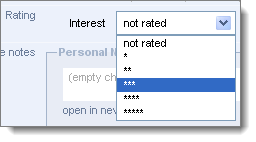
The Ratings section allows you to rate records from 0 (lowest) to 5 (highest) stars. You can use this to help organise your information by highlighting resources of particular importance, or to rate bookmarked web sites etc. To add a rating, select it from the dropdown menu:
|
Private Notes |
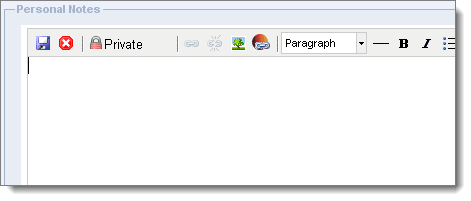
Use the Private Notes section to add any kind of personal note to the record. To add a note, click on the Private Note field. This opens the Rich Text Editor (see also Rich Text Editor):
Enter text as required. You can include HTML formatting, and add images and links to other records in the database as required. (See Rich Text Editor). Click the diskette icon to save the note. Click the X icon to close the window without saving your note. Note. Notes are not currently searchable. |
Password Reminder |
Use this to enter a prompt if you forget your password. Not the password itself but something that will remind you of your password if you forget it. |
Reminders |
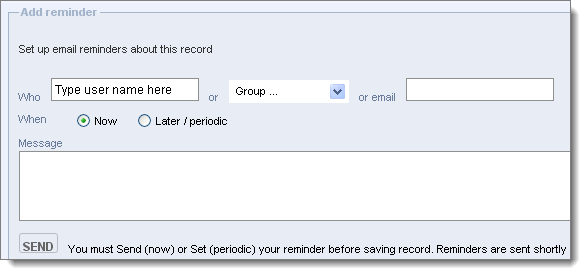
Use this to add email reminders, set as either one-off or to run at intervals.
Note. See also the Notify option on the User View screen, which allows you to send someone a notification of several records (the current selection) at once. To send a reminder (notification)
|
Created with the Personal Edition of HelpNDoc: Free EBook and documentation generator