Edit Record
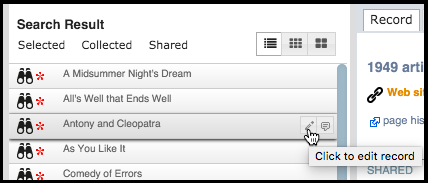
You can edit a single record by selecting its Edit icon (or double-click on the record entry) in the Search Results pane and modifying the record via the Edit Record screen tabs:
You can edit the tabs for the current record and click save (see Create Data | Add New Record).

Note. Use the Previous and Next buttons (see highlighted) to quickly scroll through a subset of records.
Edit Multiple Records
However, you can modify some proprieties of multiple records, as follows
- Edit Multiple Records. Modify multiple records (including deleting records, adding keywords to them, tagging, setting ratings etc.)
- Recode Data Values. Modify already input field values ('recoding'), by adding, replacing or removing values in multiple records.
- Change Record Type. Change the record type of multiple records
- Change Record Owner. Change the record owner of multiple records.
- Add Non-Standard Fields. Add an additional, non-standard field (i.e. a field that was not part of the original record structure) to multiple records.
To carry out multiple actions, you need first to Search for the range of records you wish to modify, and select one or more of these records.
Note. To select all records, click Selected | Select All. To select or deselect individual records use the Ctrl keys. To select a range of contiguous records, use the Shift key.
You can then choose the relevant action from the Selected menu, as described below:
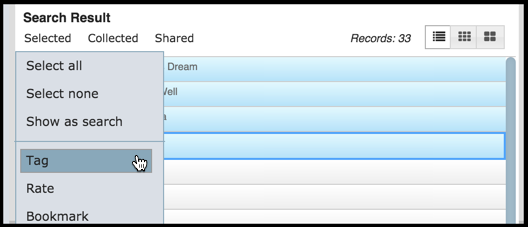
Tag
Use this option to add multiple tags.
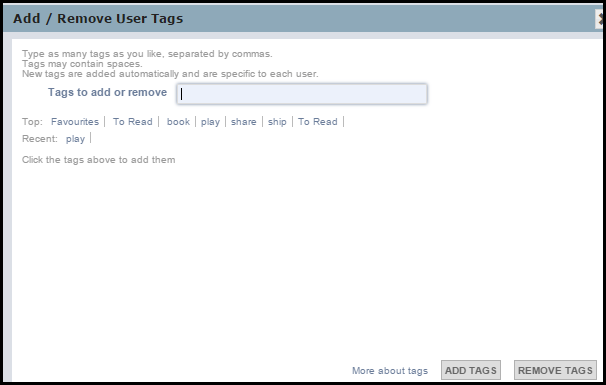
- Select Selected | Tags.
- From the Tags dialog, select or add new tags (see Bookmark Records):

Rate
Use this option to add a rating to multiple records.
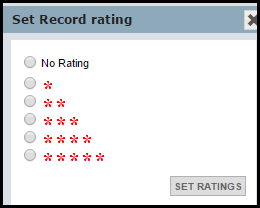
- Select Selected | Rate.
- Click on a rating (5 stars = highest):

- Click Set Ratings.
Bookmark / Un-Bookmark
- Select Selected | Bookmark. This bookmarks all selected records (see also Bookmark Records).
Note. Clicking on the Private Information tab for an un-bookmarked record, will also prompt you to bookmark the record.
The Tags dialog displays (see Tags above).
- Add tags for the bookmarked records.
Note. You can add tags at a later time using the Edit | Tags option.
To remove bookmarks from all selected records, select Selected | Un-Bookmark.
Delete
- Select Selected | Delete.
This lists the selected records for deletion:
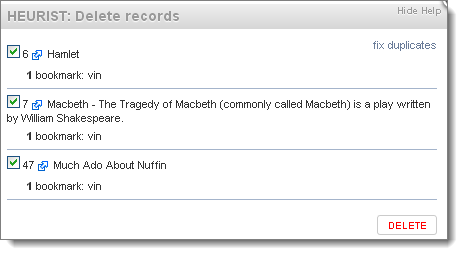
- Optionally deselect records (you do not wish to delete) from the list.
- Click Delete to continue to delete the selected records.
Merge
Use this option to merge multiple records (i.e. duplicates). You must have just one Master record (the record to which all data is merged into), and select at least one duplicate, although you can have multiple duplicates).
Merging combines all data. Any bookmarks, tags and relationships that are in the selected duplicate records but are not in the master record are added into the master records.
You are given the opportunity to review/refine any changes before committing. After the merge, all selected duplicate records are deleted.
Tip. You can take note of the records' Ids to be sure you are merging the correct records.
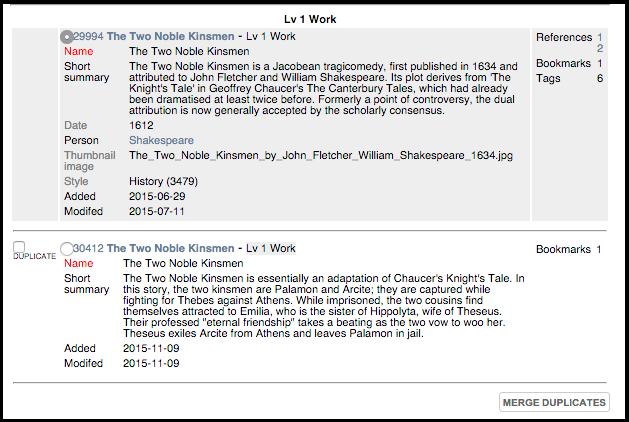
- Select the duplicated records from the Search Results pane.
- Select Selected | Merge.
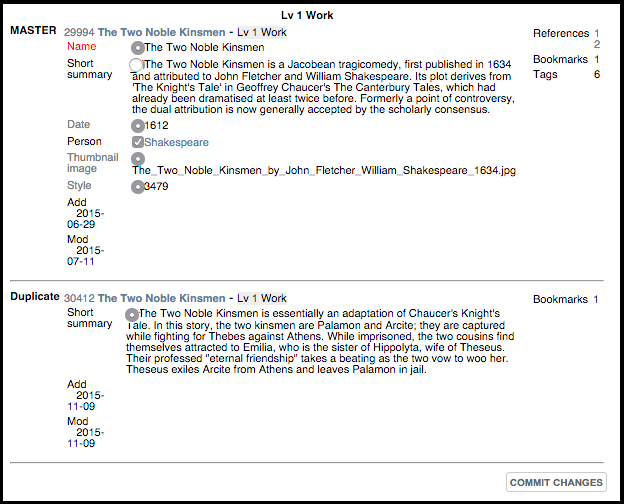
- All records are displayed (by default, the lowest Id is set as the Master record):

- Review the records' data.
- To set another record as the master record, click on the record's radio button.
- Select the record(s) you wish to merge with the master record (click on the records' checkboxes).
- When ready, click Merge Duplicates.
- Review the changes before committing:

Select the data items which should be retained, added or replaced in the Master record. Repeatable (multi-valued) fields are indicated by checkboxes and single value fields are indicated by radio buttons.
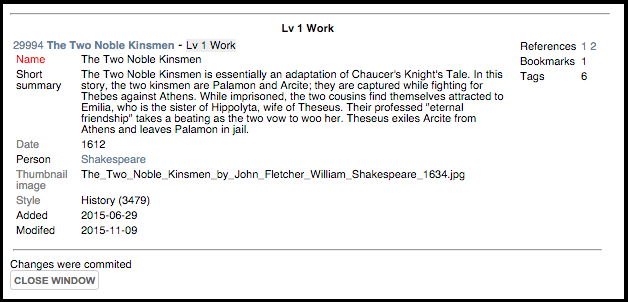
- When ready, click Commit Changes. The changes are made and the Master record displayed so that you can verify the changes.

- Click Close Window.
Relate To
Use this option to add relationship markers to multiple records.
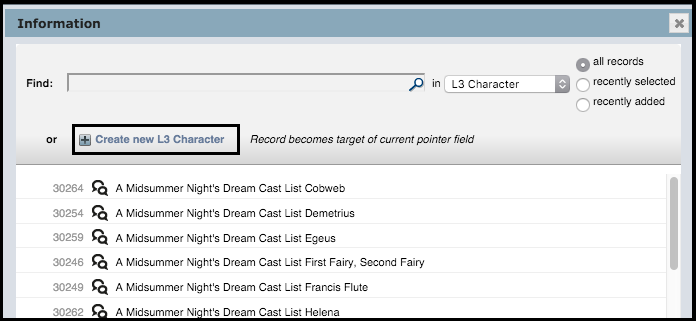
- Select Selected | Relate to. The Find Record dialog is displayed (see Find Record Dialog).
- Select the target record from the dialog:

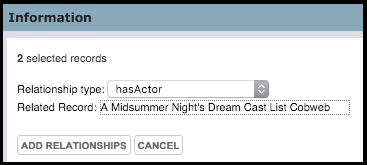
- In the Add Relationships dialog, select a Relationship type.

- Click Add Relationship.
Note. The new relationships are added. Relationships may be of any type. You can view the Relationships via a records Relationships tab. You may need to refresh the page after the update.
Recode Field Values
For any selected set of records you can update values in the records as follows:
- add a new value
- replace a value with another
- remove a value
The results of your changes are shown, with links to any records involved.
Add Field Value
This allows you to adds a new value for a specified field to each selected record. Existing values are unaffected. New values cannot be added to records where this will cause the maximum count for that field to be exceeded (e.g. adding a value to a single value field where a value is already recorded).
To add a field value
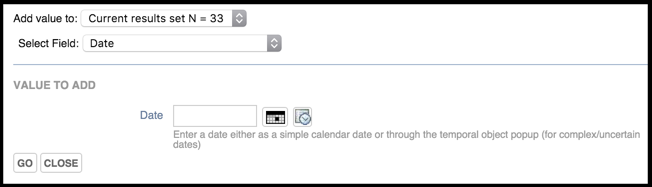
- Search and select the records you wish to update.
- Select Selected | Add Field Value.

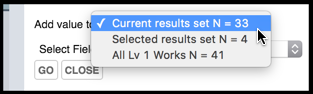
- In the Add value to field, specify what set of fields you wish to update:

The options are: all in current Search Results page; all selected by you; and all records of this type.
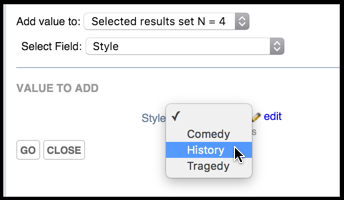
- In the Select Field field, specify the field you wish to add a value to.
- In the Value to Add section, specify the new value. For example:

- Click Go. The new value is added to the selected fields for the identified records. The Results of the update are displayed.
Replace Field Value
This allows you to find all occurrences of one or more values and replaces these occurrences with a new value. If you wish simply to change the label associated with a term (e.g. correction of a typo or systematic renaming), this can be done in Design View > Structure > Manage terms
To replace a value
- Search and select the records you wish to update.
- Select Selected | Replace Field Value.
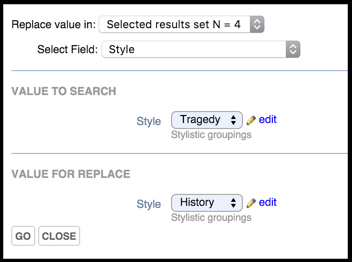
- In the Replace value in field, specify whether you wish to replace a value for the selected fields, or for all fields of this type.
- In the Select Field field, specify the field you wish to replace the value in.
- In the Value to Search section, specify the value to be replaced and the replacement value. For example:

- Click Go. Any values that match the value you entered are replaced within the selected fields. The Results of the update are displayed.
Delete Field Value
This allows you to delete the contents of a specific field.
To delete a field value
- Search and select the records you wish to update.
- Select Selected | Delete Field Value.
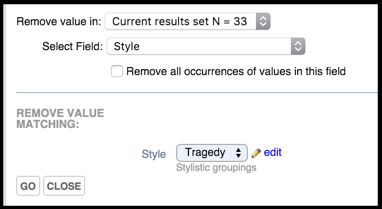
- In the Add value to field, specify whether you wish to remove a value for the selected fields, or for all fields of this type.
- In the Select Field field, specify the field you wish to remove the value from.
- In the Remove Value Matching section, specify the value to be removed. For exam;le:

- Click Go. Any values that match the value you entered are removed within the selected fields.The results of the update are displayed.
Created with the Personal Edition of HelpNDoc: Free CHM Help documentation generator